Your wallpaper defines the personality of your device. It is the first thing you see when you wake up your phone or open your laptop. Many users believe they need specialized apps to manage backgrounds, create slideshows, or adjust layouts. However, modern operating systems come equipped with powerful tools to handle this natively.
Using third-party apps often drains battery life, demands unnecessary permissions, or serves annoying ads. By sticking to built-in features, you ensure privacy and keep your system running smoothly.
This guide explores exactly how to customize wallpapers using the native settings on Windows, macOS, Android, iOS, and Linux.
Why Use Built-In Wallpaper Settings Instead of Apps?
Before diving into the steps, consider why native customization is the smarter choice.
- Enhanced Security: You avoid granting photo gallery or file access to unknown developers.
- Better Performance: Built-in settings are optimized for the OS. They use zero background resources compared to live wallpaper apps that drain RAM and battery.
- Ad-Free Experience: System settings never interrupt you with pop-ups or premium subscription demands.
- Simplicity: The tools are already there. You do not need to download or update anything.
1. How to Customize Wallpapers on Windows (10 & 11)
Windows offers extensive options to change wallpaper without apps, including setting up personal slideshows.
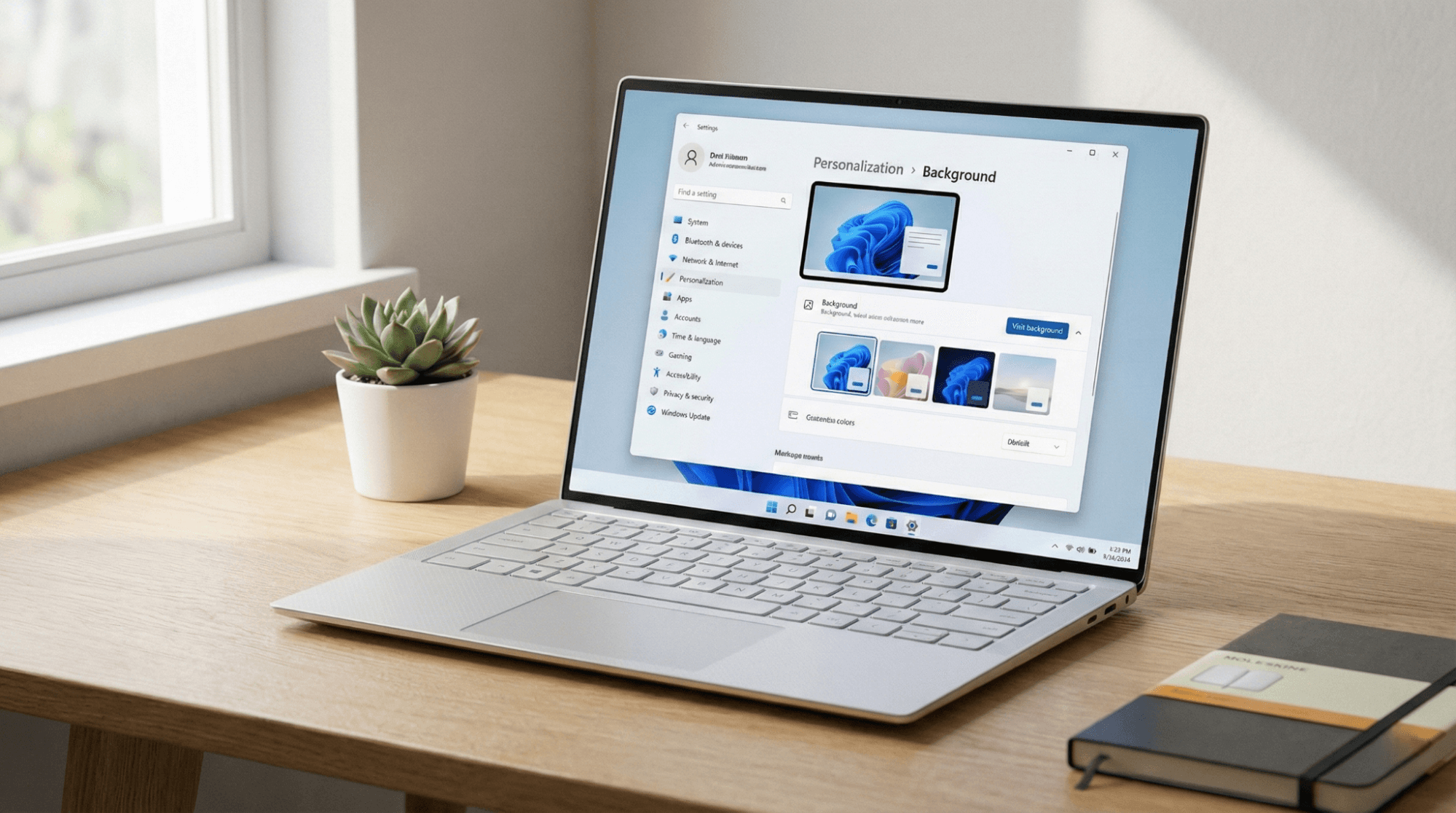
Steps for Windows 10 & 11:
- Right-click on any empty space on your desktop.
- Select Personalize from the context menu.
- Click on Background.
- Look for the drop-down menu labeled "Personalize your background."
- Choose one of the following options:
- Picture: Select a single static image. Click Browse photos to pick a file from your storage.
- Solid Color: Choose a flat color for a minimalist, distraction-free look.
- Slideshow: Select a folder containing your favorite images. Windows will rotate through them automatically.
- Adjust the Change picture every setting (for slideshows) to your preferred time interval (e.g., 30 minutes, 1 hour).
- Under "Choose a fit," select Fill or Fit to ensure the image looks correct on your screen size.
Pro Tip: If you use multiple monitors, right-click a specific image in the Recent Images list to assign it to Monitor 1 or Monitor 2 specifically.
2. Customizing Backgrounds on macOS
Mac computers are known for their stunning displays. Apple makes it incredibly easy to manage high-resolution backgrounds directly from System Settings.
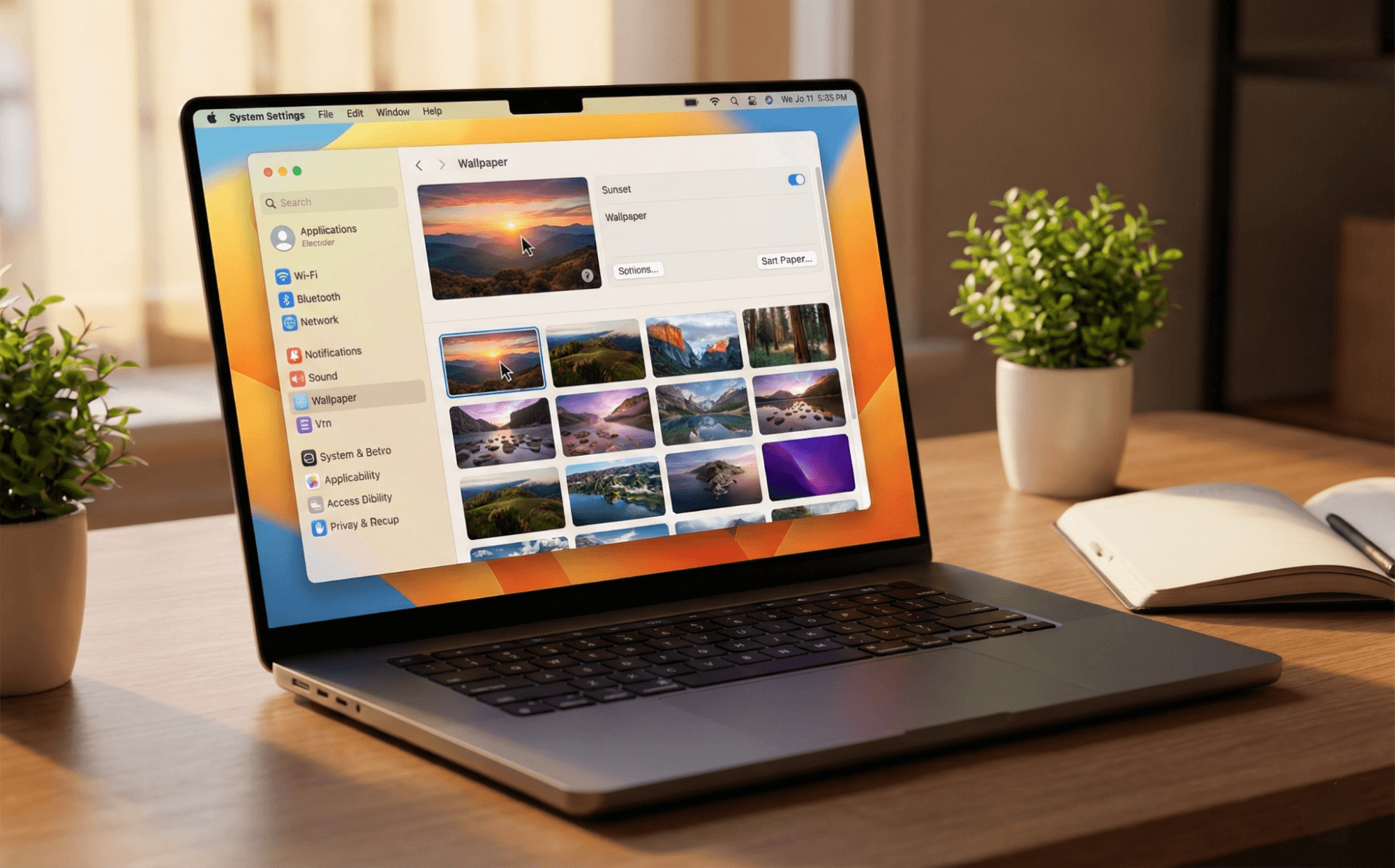
Steps for macOS:
- Click the Apple Menu () in the top-left corner of the screen.
- Select System Settings (or System Preferences on older versions).
- Click on Wallpaper in the sidebar.
- Browse the gallery. You will see categories like Dynamic Desktop, Landscape, and Colors.
- To use your own photo, scroll down to Add Photo or Add Folder or Album.
- Select your desired image.
- Adjust options like Auto-Rotate if you want the wallpaper to change periodically.
Note on Dynamic Wallpapers: macOS includes native dynamic wallpapers that shift from light to dark mode based on the time of day. This works automatically without extra software.
3. Changing Wallpapers on Android
Android allows for deep customization. While manufacturers (Samsung, Pixel, OnePlus) have slightly different skins, the core process remains consistent.
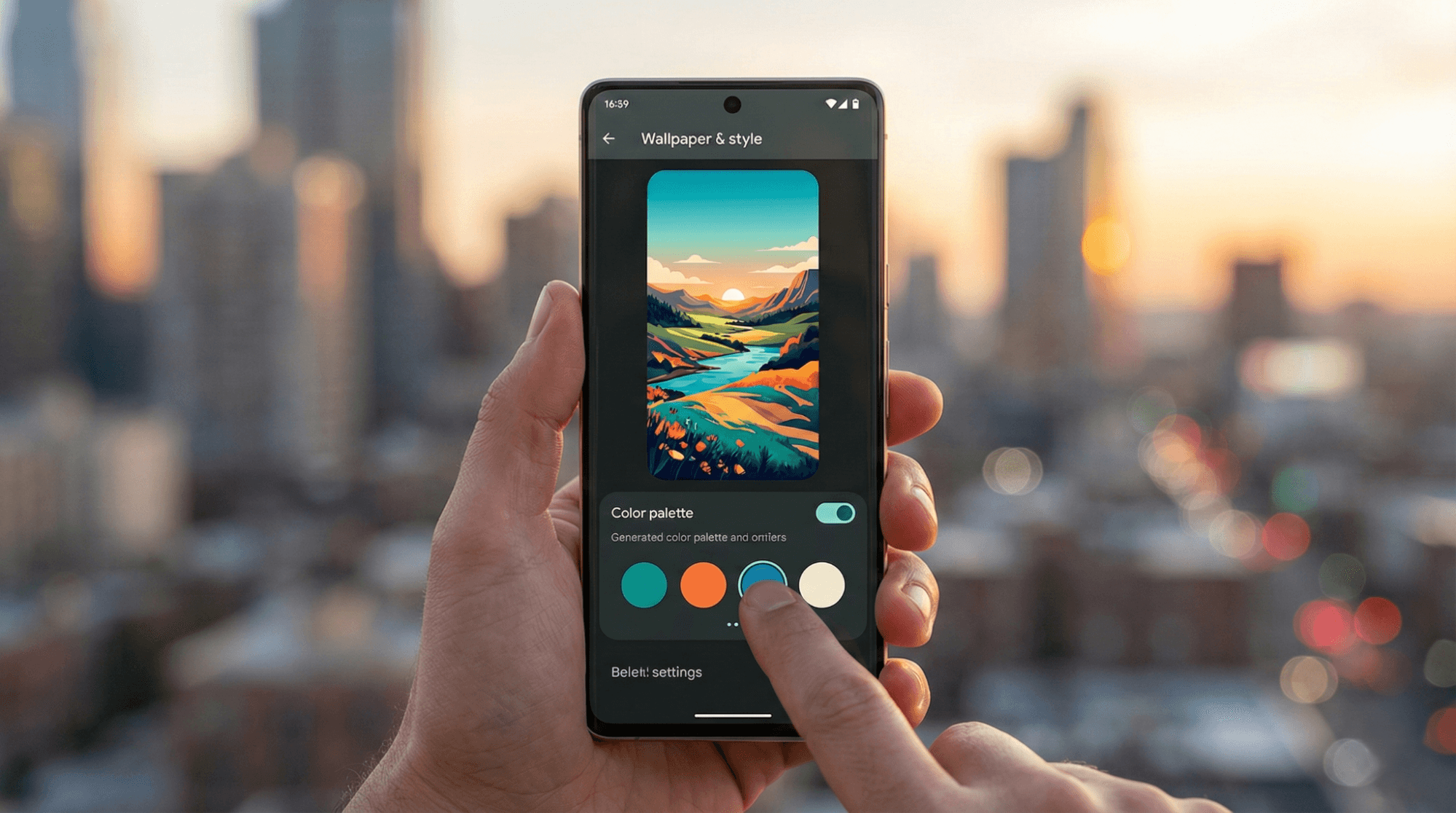
Steps for Most Android Devices:
- Go to your Home Screen and find an empty space.
- Long-press (tap and hold) on the empty space.
- Tap on Wallpaper & style (or just Wallpaper).
- Select Change wallpaper or My photos.
- Pick an image from your gallery or the pre-installed categories.
- Adjust the preview. You can pinch to zoom in or move the image to center your subject.
- Tap Set Wallpaper.
- Choose Home screen, Lock screen, or Home and lock screens.
Material You Tip: On Android 12 and newer, enable "Dynamic Color" or "Palette." This changes your system icons and menu colors to match the dominant colors of your new wallpaper.
4. Setting Up Wallpapers on iOS (iPhone & iPad)
Apple overhauled OS wallpaper customization in recent iOS versions, allowing for widgets, depth effects, and font changes on the Lock Screen.
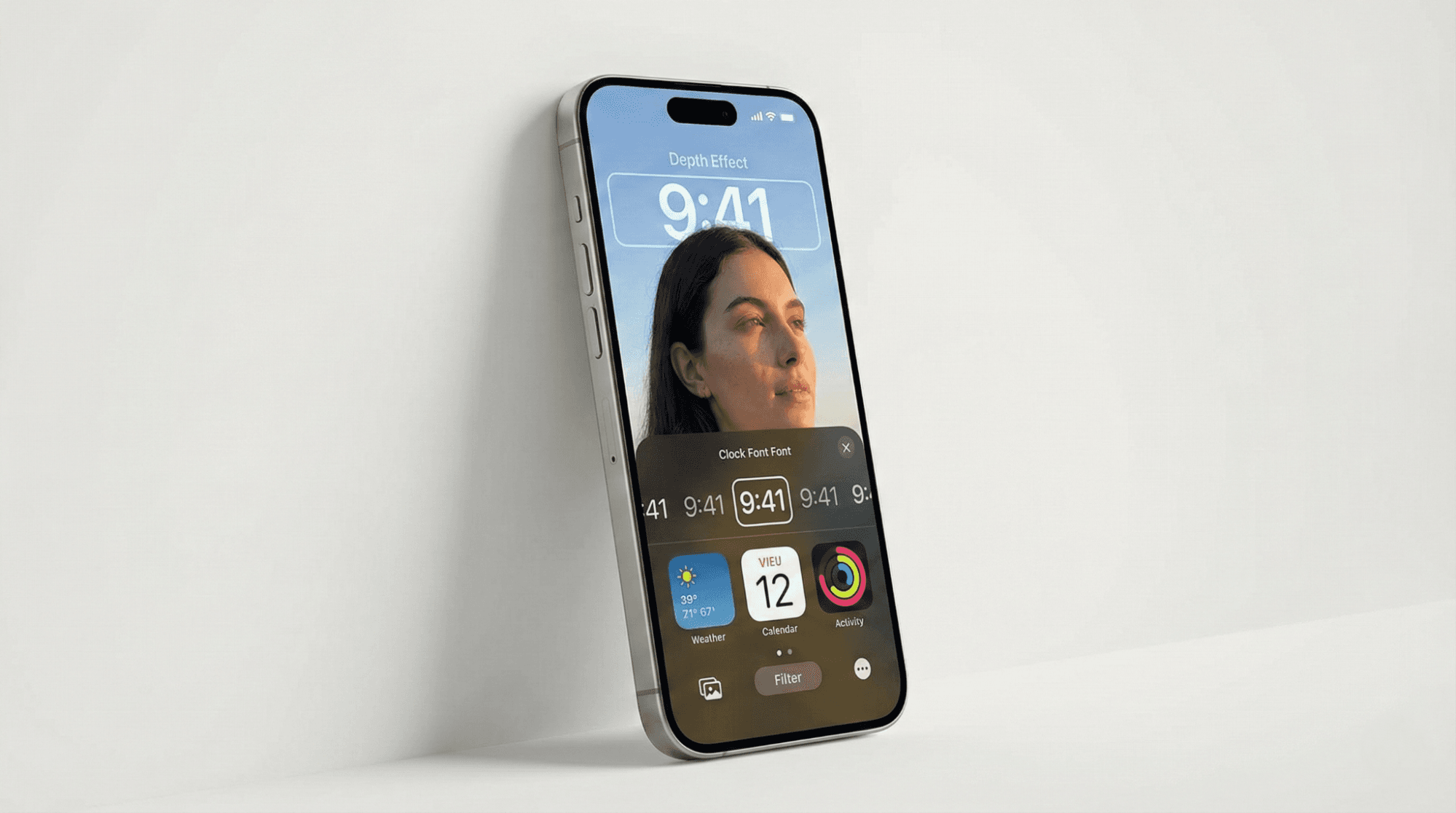
Steps for iOS 16 and Later:
- Unlock your iPhone but stay on the Lock Screen.
- Long-press anywhere on the Lock Screen.
- Tap the blue + (Plus) icon in the bottom right or swipe to the end to Add New.
- Select Photos to choose your own image or pick a preset like Astronomy or Weather.
- Pinch to crop the image perfectly.
- Swipe left or right to apply native filters like Black & White or Duotone.
- Tap Add in the top right corner.
- Choose Set as Wallpaper Pair to match the Home Screen, or Customize Home Screen to blur the background behind your apps.
Depth Effect: If you use a photo with a clear subject, iOS naturally layers the time behind the subject for a 3D effect. Ensure you do not block too much of the subject for this to trigger.
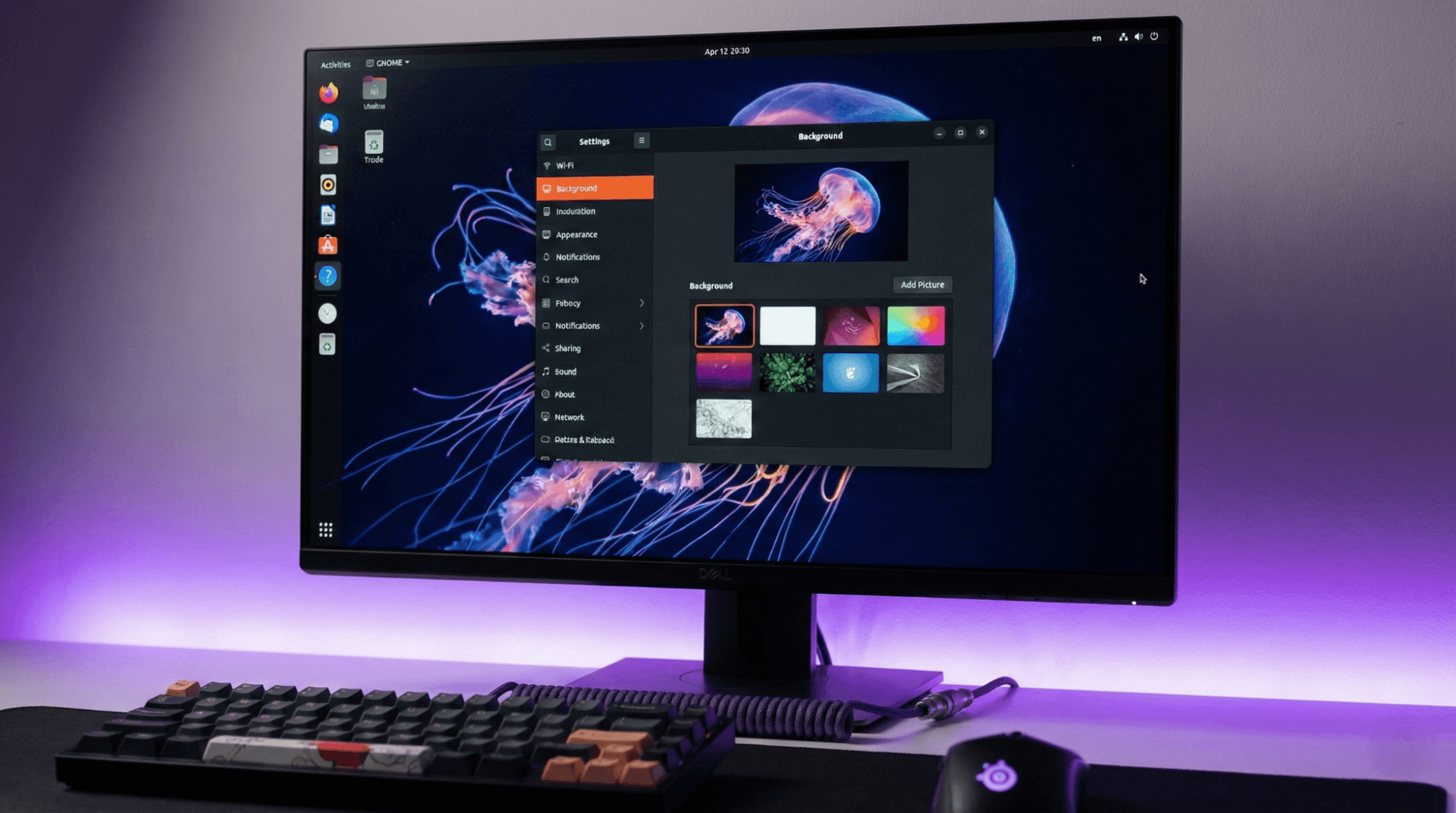
5. Wallpaper Customization on Linux (Ubuntu/GNOME)
Linux users often prefer efficiency. The default GNOME desktop environment (found in Ubuntu and Fedora) handles backgrounds simply and effectively.
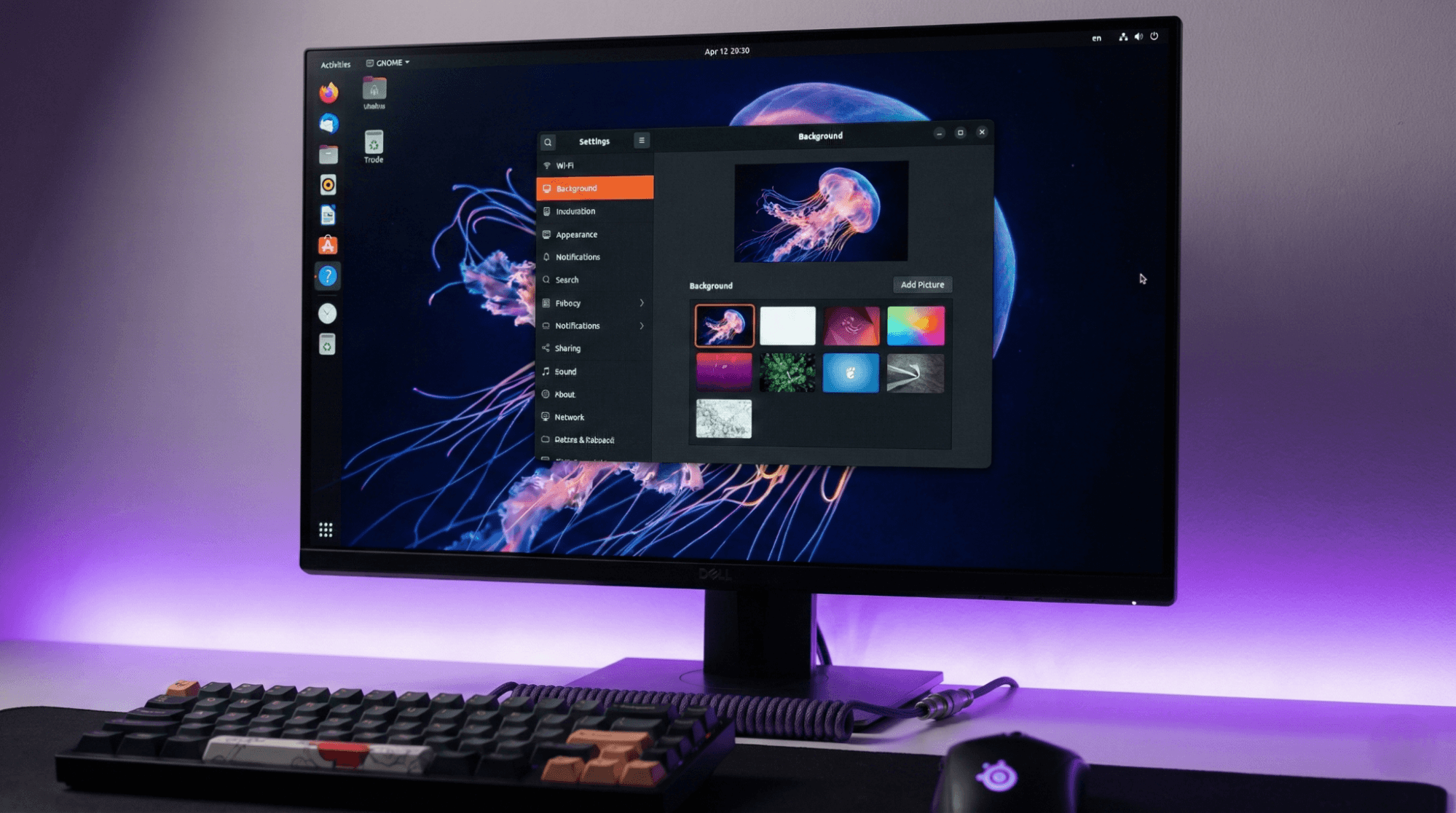
Steps for Ubuntu (GNOME):
- Right-click anywhere on the desktop background.
- Select Change Background or Settings > Background.
- You will see two previews: one for the desktop and one for dark mode (if applicable).
- Click on the existing wallpaper to open the selection gallery.
- Click Add Picture in the top header to upload a custom image from your files.
- Select your image and click Open.
- The system applies the change immediately.
Wallpaper Tips for Best Visual Quality
Even the best built-in wallpaper settings cannot fix a bad image. Follow these tips to ensure your screen looks crisp.
- Match the Resolution: Always use a wallpaper that matches or exceeds your screen resolution. For a 1080p screen, use at least a 1920x1080 image. For 4K monitors, use 3840x2160.
- Watch the Aspect Ratio: Do not use a vertical (portrait) photo on a horizontal (landscape) desktop monitor. It will stretch or blur.
- Contrast is Key: If your desktop icons have white text, choose a darker wallpaper. If you use dark icons, pick a lighter background to ensure readability.
- Battery Management: For devices with OLED screens (many modern iPhones and Androids), using "True Black" wallpapers turns off pixels completely, saving significant battery life.
Where to Find High-Quality Wallpapers
Now that you know how to configure your settings, you need the right images. Avoid downloading random images from Google Images, as they are often low-quality or watermarked.
- System Defaults: Check your OS library first. macOS and Windows often hide stunning 4K landscapes in their default folders.
- Wallpezia: For curated, high-resolution collections organized by category, platforms like Wallpezia provide excellent options. You can simply save the image file and apply it using the steps above—no app installation required.
- Photography Hubs: Sites dedicated to raw photography often provide images large enough for desktop slideshows.
Common Wallpaper Customization Mistakes to Avoid
- Stretching Low-Res Images: Never force a small image to "Fit" or "Fill" a large screen. It results in visible pixelation.
- Ignoring the Notch/Camera Cutout: On mobile devices, ensure your wallpaper's main subject isn't hidden behind the camera cutout or the clock widget.
- Overly Busy Backgrounds: A wallpaper with too many colors and shapes can make it impossible to find your app icons. Stick to cleaner compositions for the Home Screen and save complex art for the Lock Screen.
Conclusion
You do not need to clutter your device with third-party software just to change your view. Whether you are on Windows, Mac, Android, iOS, or Linux, the built-in wallpaper settings are powerful, safe, and efficient. They allow you to maintain privacy while giving your device a fresh look.
By following these simple steps, you can fully control your digital environment. Next time you want a new aesthetic, visit a reliable source like Wallpezia for a crisp image, and let your operating system handle the rest.
Related Topics:
- How to Set Dynamic Wallpapers That Change Automatically on Windows or Mac?
- How to Download High-Resolution Wallpapers Safely from Popular Wallpaper Sites?
@All images in this blog are sourced from Wallpezia